Go Beyond The Code — Workspace Manager
After you integrate secureFlows into your application, the Workspace Manager is where owners and admins operate the workspace — applications, users, billing, usage, and security — without writing more backend code.
What the Workspace Manager is
The Workspace Manager is the secureFlows admin console at
/app/workspaces. It is separate from your product UI: your app
talks to the Session API; operators use the console to configure the workspace boundary your app runs inside.
If you followed Create a Workspace and Build your First Application, you already touched the console. This guide goes deeper into what you can do there day to day.
Console sections
Each tab maps to a part of workspace operations:
General
Workspace name, anonymous sessions policy, and billing plan. Upgrade to paid plans via secure checkout when enabled on your environment.
Applications
Register client apps, redirect URIs, and session settings. Each application gets its own integration credentials for hosted login.
Invites
Invite admins and users by email. Control who can sign in to the workspace and which role they receive.
Sessions
Cross-user session list for admins — search, inspect payload on demand, revoke, adjust TTL, and export.
Users
View workspace members, roles, and access. Revoke access when someone should no longer operate in the workspace.
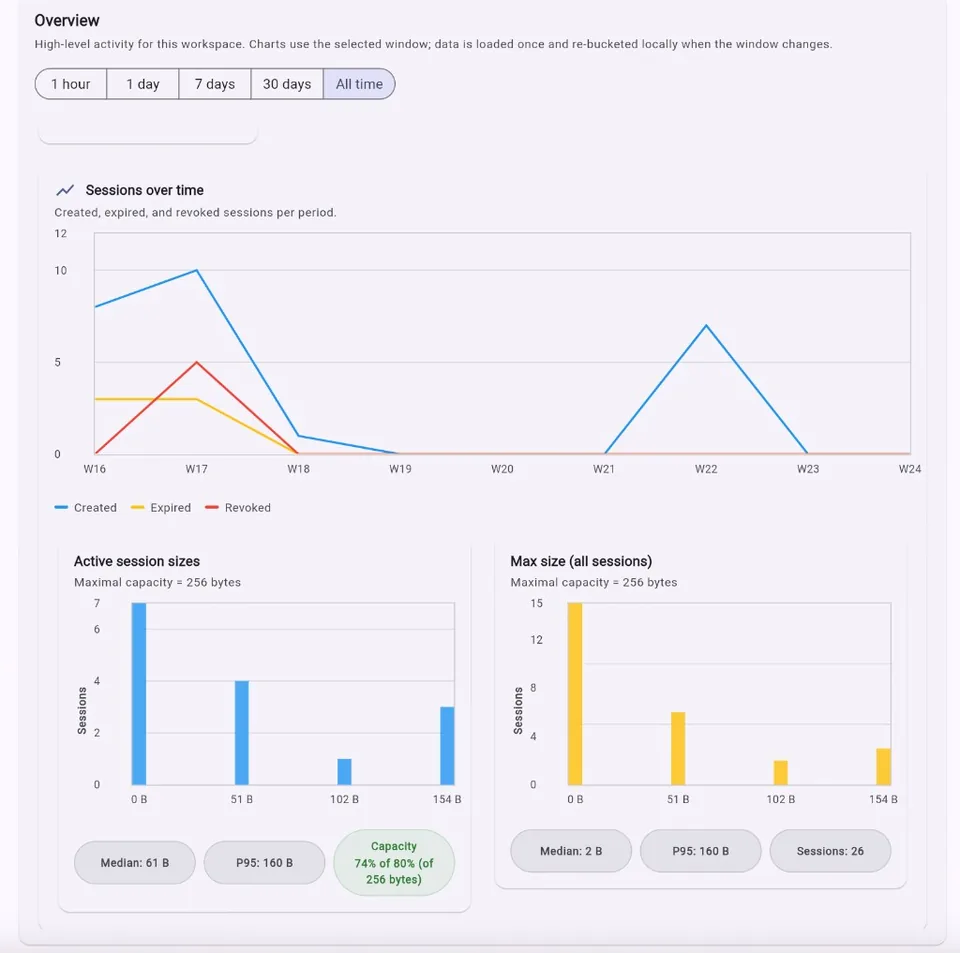
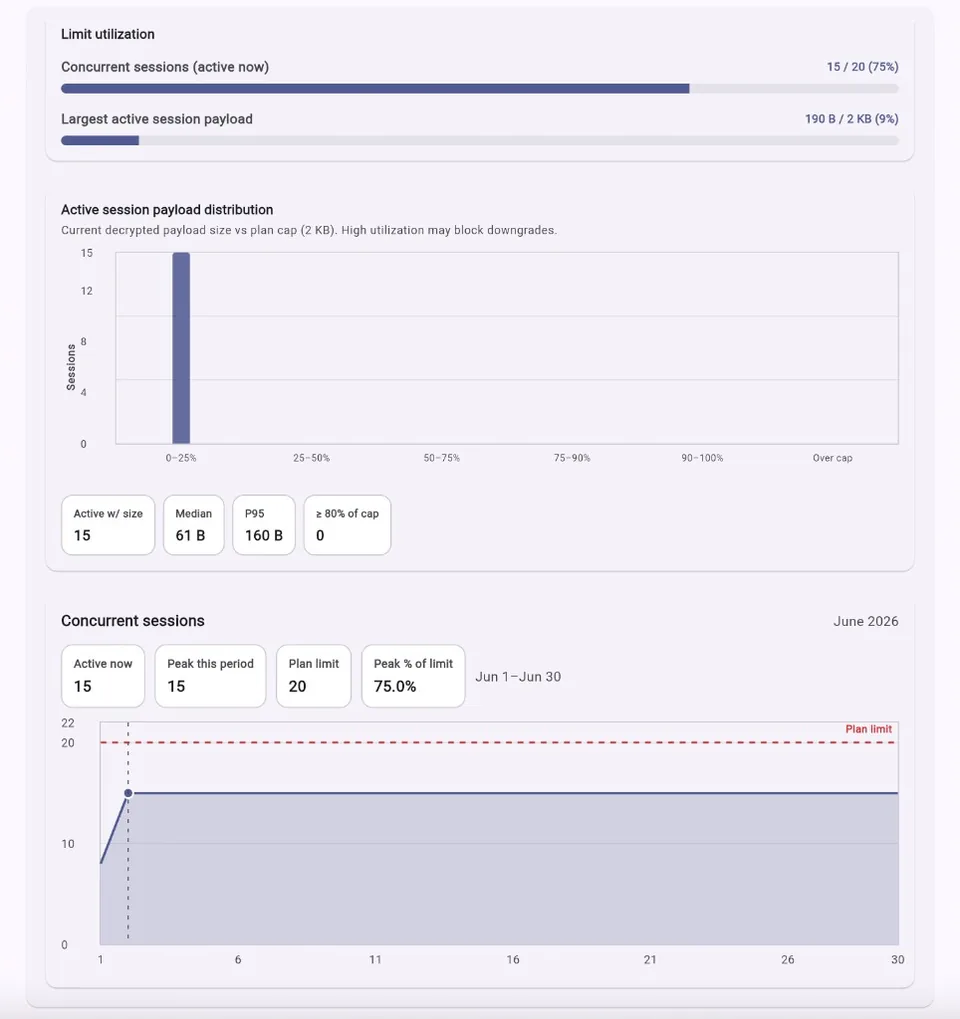
Analytics
Session usage, concurrent load, payload distribution, and billing limits. See whether you are approaching plan caps before users hit errors.
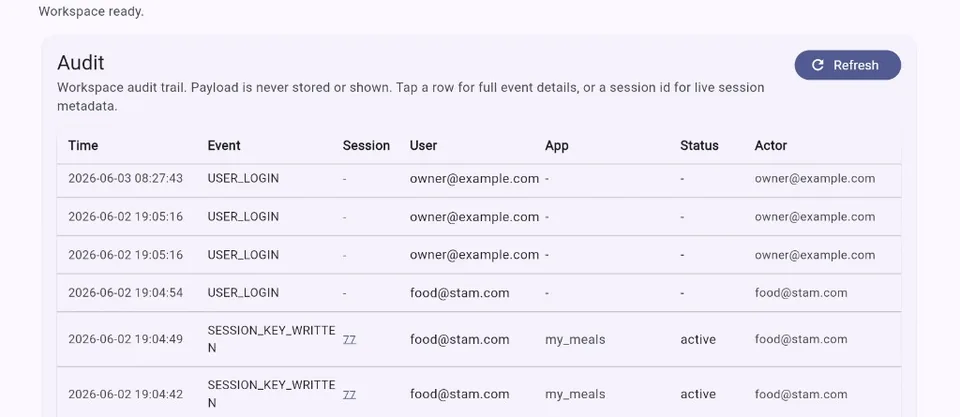
Security
Audit log and API access log. Trace who did what and when — payload is never stored or shown in the audit trail.
Who can do what
- Owner — full workspace control, including billing checkout and plan changes.
- Admin — same day-to-day operations as owner (applications, invites, sessions, users, analytics).
- User — uses your application and the self-service portal; not the admin console.
Open the console
- Go to Console home and choose Workspace management.
- Sign in with the Google account tied to your workspace (or accept an invite first).
- Use the sidebar tabs to move between General, Applications, Invites, Sessions, Users, Analytics, and Security.
What comes next
Each console tab has a dedicated guide — General, Applications, Invites, Sessions, Users, Analytics, and Security. More walkthroughs and screenshots will be added over time.
For integration details, continue with the API documentation and the integration SKILL.
Go beyond the code: let secureFlows host login, encrypted storage, and isolation — and use Workspace Manager to run the workspace like a product operator, not a backend engineer.