Workspace Management
Sessions
Inspect, troubleshoot, and intervene on user sessions across your whole workspace — without building an admin backend or querying the database yourself.
What is a session?
A session is the container for a user's stored data inside one registered application. When your app saves state through secureFlows — preferences, form progress, vault entries — it lands in a session scoped to that user and that app. One user can have many sessions (for example one per device or login), each isolated from every other user.
Sessions can be durable (no expiry — shown as - in the Expires column) or
expirable with a payload TTL set at creation or updated later by an admin. When TTL runs
out, the session moves to expired status; admins can also revoke a session
early, which destroys its data immediately.
The Sessions tab is where workspace admins and owners browse every session row — all users, all apps — and open any one to read its metadata (timestamps, status, sizes) and decrypted payload when needed for support. End users see only their own sessions in the self-service portal; this tab is the cross-user operator view.
Find the session you need
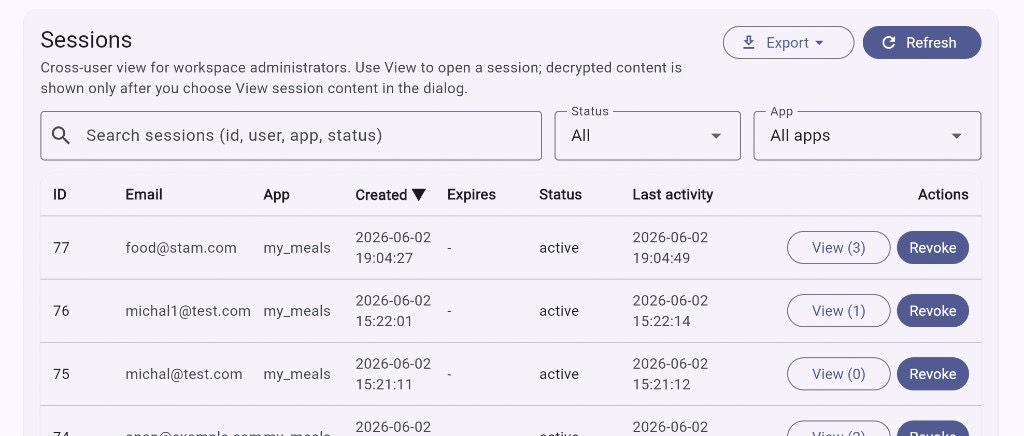
The table lists every session that matches your filters on the current page:
- Search — session id, user email, app id, or status.
- Status — all, active, expired, or revoked.
- App — one registered application or all apps.
- Sort — click column headers (id, email, app, created, expires, status, last activity).
Each row shows id, email, app, created and expiry times, status, and last activity. The
View (N) button opens detail — N is the number of payload properties. Use
Refresh to reload after changes elsewhere.
Inspect session detail
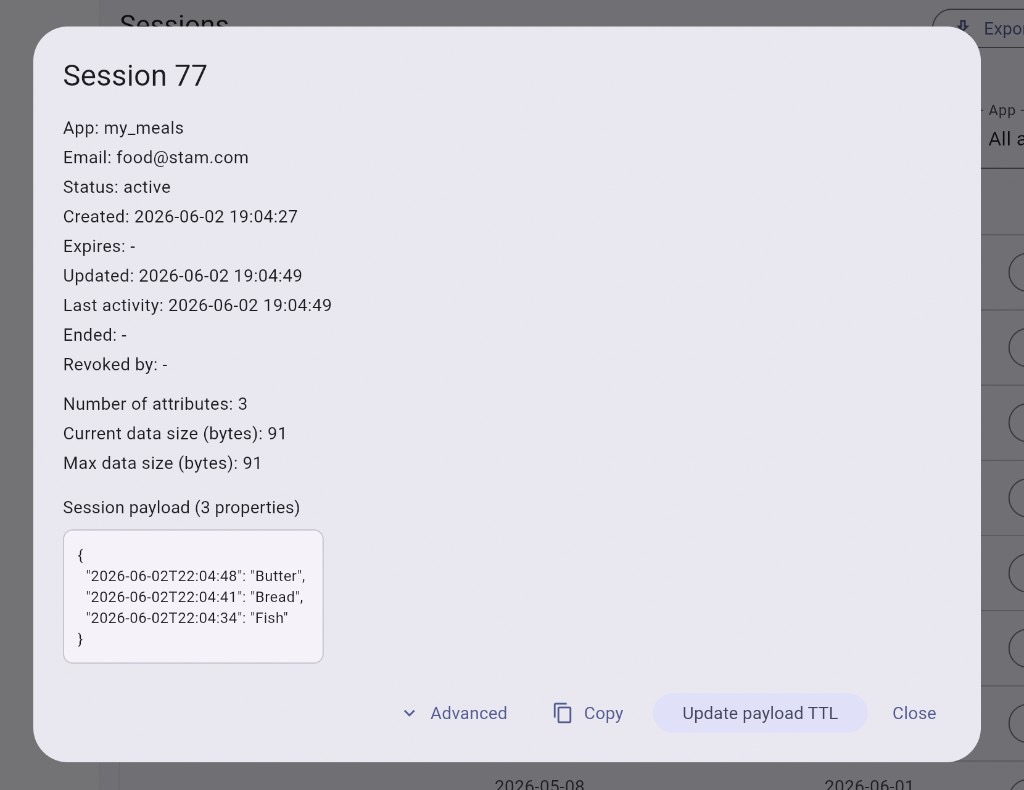
Click View (N) on a row to open the session dialog. You see identity and lifecycle fields
immediately: app, email, status, created, expires (or - when durable), updated, last activity,
ended, and revoked-by when applicable. Size fields show attribute count and current/max payload bytes.
Decrypted payload is hidden until you choose View session content in the dialog — an intentional step so browsing the list does not expose user data. After reveal, the JSON payload appears under Session payload (N properties). Admin payload reads are audit-logged (see Security).
From the dialog you can Copy the full detail, expand Advanced for session and Firebase ids, and — for active sessions — Update payload TTL to set a new expiry or mark the session unlimited without revoking it.
Revoke a session
Revoke is a per-row action on the sessions table — use it when one specific session must stop working immediately: a leaked token, a support request to wipe data, or incident response for a single login.
Confirming revoke is final: the session and all stored payload are destroyed and cannot be restored. Anything still using that session token — your app, automation, or a background job — gets rejected on the next API call. Revoked sessions show status revoked in the list; other sessions for the same user are unaffected.
Revoke is separate from expiry (TTL running out naturally) and from export (downloading a copy for analysis). Use revoke only when you intend to kill that session permanently.
Export sessions
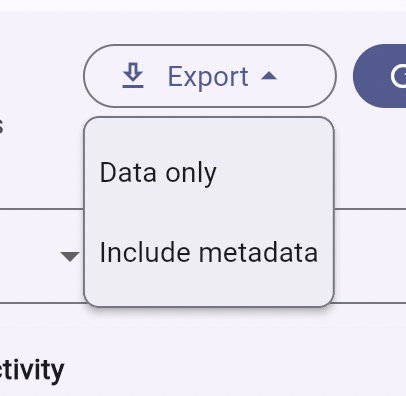
The Export menu at the top of the tab downloads the sessions on the current table page — exactly the rows you see after applying search, status, app filter, sort, and pagination — as a JSON file.
Two formats:
- Data only — app id, user email, and decrypted payload for active sessions on this page. Use when you need the stored values for support or migration.
- Include metadata — full session rows: created time, expiry/TTL, status, last updated, last activity, payload sizes, attribute count, and decrypted payload — for every row on this page matching your filters.
Example Data only export (one row on the page):
{
  "items": [
    {
      "appId": "my_meals",
      "userEmail": "[email protected]",
      "payload": {
        "2026-06-02T22:04:48": "Butter",
        "2026-06-02T22:04:41": "Bread",
        "2026-06-02T22:04:34": "Fish"
      }
    }
  ],
  "page": 0,
  "pageSize": 100,
  "totalItems": 1,
  "totalPages": 1
}
Example Include metadata export (one row on the page):
{
  "items": [
    {
      "id": 1,
      "userIdentifier": "Sq2jnvqLDaWVAb93zZfEpV86YiA2",
      "userEmail": "[email protected]",
      "revokedBy": null,
      "appId": "app-1",
      "createdAt": "2026-06-21T17:34:34.998102",
      "expiresAt": null,
      "status": "active",
      "currentDataSizeBytes": 17,
      "maxDataSizeBytes": 37,
      "lastActivityAt": "2026-06-21T17:34:35.310152",
      "updatedAt": "2026-06-21T17:34:35.310438",
      "attributeCount": 1,
      "payload": {
        "name": "Michal"
      }
    }
  ],
  "page": 0,
  "pageSize": 10,
  "totalItems": 1,
  "totalPages": 1
}
Export is read-only; it does not revoke or change sessions. Change filters or page first if you need a different slice of the workspace.
Sessions vs Analytics
Analytics answers capacity and trend questions — charts, concurrent load, payload distribution against plan limits. The Sessions tab answers operational questions about individual rows: who owns this session, which app, is it still active, what is in the payload? Use both: Analytics for health dashboards, Sessions for hands-on work.