Workspace Management
General
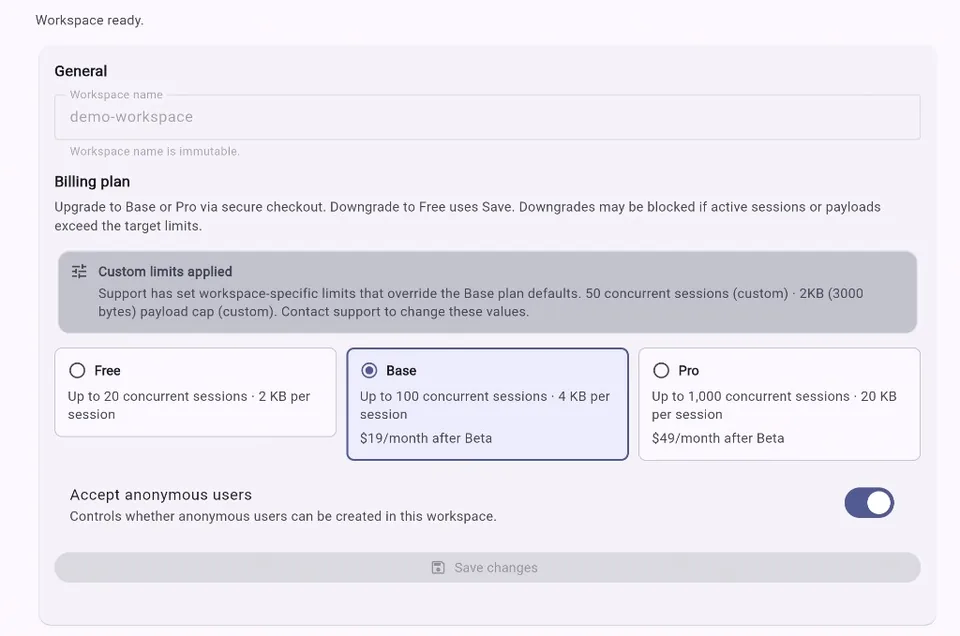
The General tab in Workspace Manager is where you set workspace
identity, billing plan, and workspace access policies: acceptAnonymous (open vs invite-only signup)
and enableSelfService (whether end users may open the self-service dashboard).
What is a Workspace?
A workspace is your own private universe inside secureFlows.
Think of it as a locked room for your app and its users. Everything that happens inside — every user, every saved session, every piece of stored data — stays inside that room. Nothing leaks out, and nothing from anyone else's app leaks in.
When you build something with AI tools or no-code automations, you're often moving fast and connecting a lot of moving parts. A workspace is what keeps that speed safe: it's the boundary that guarantees your users' data can never mix with another developer's users, even if you're both running on the same secureFlows infrastructure.
But isolation doesn't stop at the workspace boundary — it goes all the way down to the individual user. Inside a single workspace, every user's data is also sealed off from every other user in that same workspace. Two people using the same app, in the same workspace, still can never see each other's data. One workspace can safely hold thousands of users, each with their own fully private space, and none of them can reach into anyone else's.
In plain terms:
- One workspace = one isolated home for one app (or one product).
- Every session, every user, every saved preference lives inside a workspace — and stays there.
- Inside that workspace, each user is also isolated from every other user — your data and mine never touch, even though we're both "in" the same app.
- You set the rules for your workspace (like how long data should be kept, or whether open self-signup is allowed).
- You (the owner) and your team (admins) are the only ones who can manage what happens inside it — and even then, access to user data is role-controlled and logged, not a free-for-all.
You create a workspace once, at the very start — it's a one-time setup step, not something your app code needs to think about every time it runs. After that, your app just quietly uses it in the background, every time a user logs in or saves something.
Why it matters: without workspaces, isolation would depend on developers writing careful code every time — both between apps, and between users within the same app. With workspaces, isolation is just how the system works at every level, and it's not something you can accidentally misconfigure.
What does "Accept Anonymous" mean?
Most apps want everyone to be able to sign up and start using them. You build something, you want people to find it, sign in, and go — without anyone having to manually approve each person first.
That open, anyone-can-join behavior is what acceptAnonymous controls — and it's
on by default, because it's what most apps need.
If instead you want to keep your app private — usable only by a specific, pre-approved set
of people — you turn acceptAnonymous off. That switches your workspace to
invite-only: from that point on, only people an admin has explicitly
invited can authenticate and use the app.
A quick note on the name: "anonymous" here doesn't mean users skip logging in. Everyone still authenticates, always. It just means they weren't a known, pre-invited identity beforehand — they showed up on their own and were still let in.
In plain terms:
- On (default): anyone can authenticate and get their own private, isolated data space — open self-signup, no invite required.
- Off (opt-in): only pre-invited users can authenticate and use the app — choose this when you need a closed, private app.
Why you'd leave it on: the common case — public-facing apps, consumer products, anything where you want people to be able to just show up and start using it.
Why you'd turn it off: internal tools, B2B products, or anything where access needs to be tightly controlled by an admin from day one. Send invites from the Invites tab.
It's a single switch, set per workspace, and your app code doesn't need to handle the distinction — secureFlows enforces it automatically based on the workspace setting.
Billing plan (when payment is enabled)
On environments where paid checkout is available, the General tab also shows cancel / resume controls. Cancel stops auto-renewal only — you must still Downgrade to Free yourself. If the paid period ends without that downgrade, end-user session access is locked until you Free-downgrade (grace period). Owners can still list and revoke sessions from the Sessions tab during the lock.
Enable self-service
The self-service dashboard lets your end users list their own sessions, inspect
their data, and revoke sessions — without you building a portal. That experience is controlled per workspace
by enableSelfService (on by default).
When on, eligible users (USER and ANONIMOUS roles) see the
workspace in the self-service workspace picker and can sign in at /app/self.
When off, the workspace is hidden from that picker and self-service API calls return 403 Forbidden. Workspace owners and admins are unaffected — they still use Workspace Manager via the normal console login.
Why turn it off: apps where you handle all account management in your own UI, internal tools with no end-user portal, or tenants where session visibility should be admin-only.
This is independent of acceptAnonymous: you can allow anonymous app users while disabling the
hosted self-service portal, or the reverse, depending on your product.