Getting started
Finding the correct redirect URL
Hosted login sends users back to a URL you allowlist on the application. Most teams set that once for production; the walkthrough further down is for when the callback URL is hard to know up front.
The redirect URL is required for security: after login, secureFlows will only send the user back to addresses you have explicitly allowlisted, so a stolen login flow cannot be redirected to an attacker’s site.
Normal flow — use this first
Your redirect URI: your app’s public origin plus /callback. Example:
https://my-domain.com/callback.
In Workspace Management, add that URL under Redirect URIs when
you create the application, and implement a /callback route in your app so users land there after
sign-in. If you already have a stable domain, that is usually all you need.
Discovering the URL step by step
If the normal flow above did not work for you — or you are not sure what callback URL to allowlist yet — use the numbered steps below. That often comes up when:
- Hosted AI builders with an internal preview sandbox (for example Lovable or Base44), where the callback host is not obvious upfront and changes again when you publish.
- You truly do not know the exact callback URL yet — secureFlows can show it in an allowlist error on the first sign-in attempt.
This walkthrough uses Lovable with secureFlows. The same pattern applies to Base44 and most other AI app builders that use preview vs published hosts.
1. Create an application with a placeholder redirect
In Workspace Management, create a new application. Set an application ID you’ll
reuse in your builder prompt (for example simple-app). For the redirect URI, use a dummy value
such as http://placeholder.com instead of your real callback — you’ll replace it once the
platform (or secureFlows) shows you the real URL. If you already know your production callback, you can add
https://my-domain.com/callback now and still use the placeholder trick for preview only.
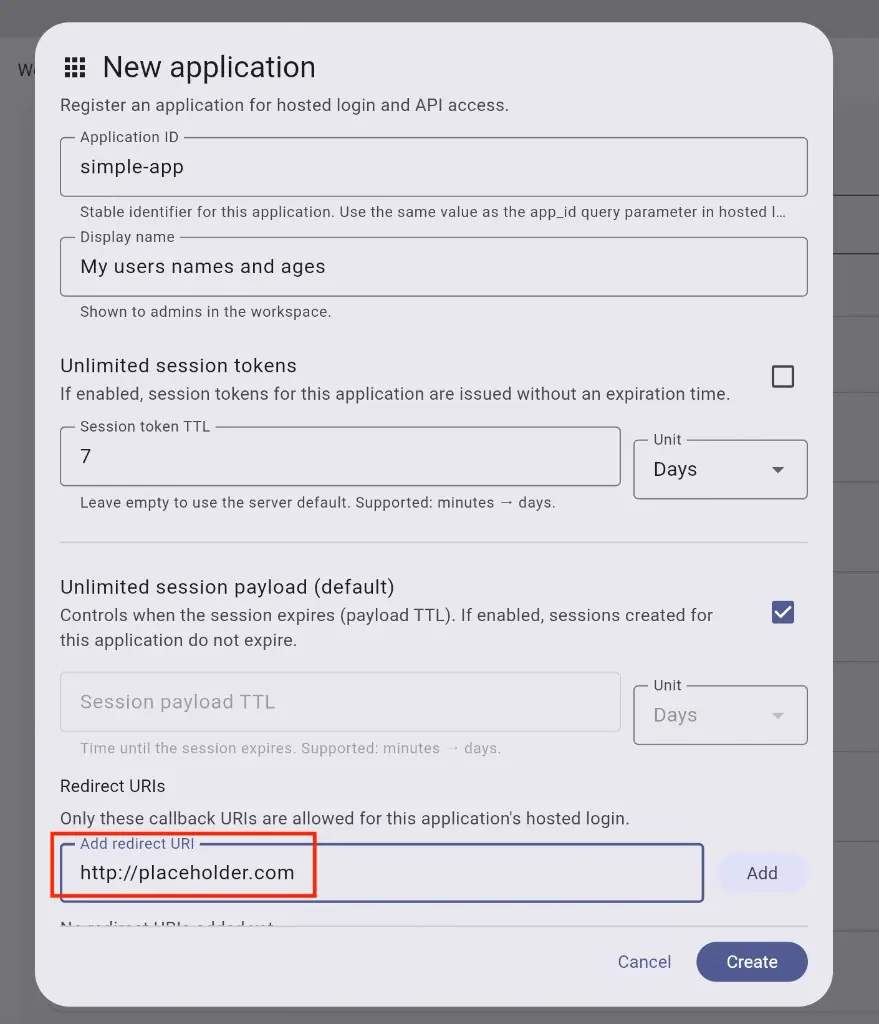
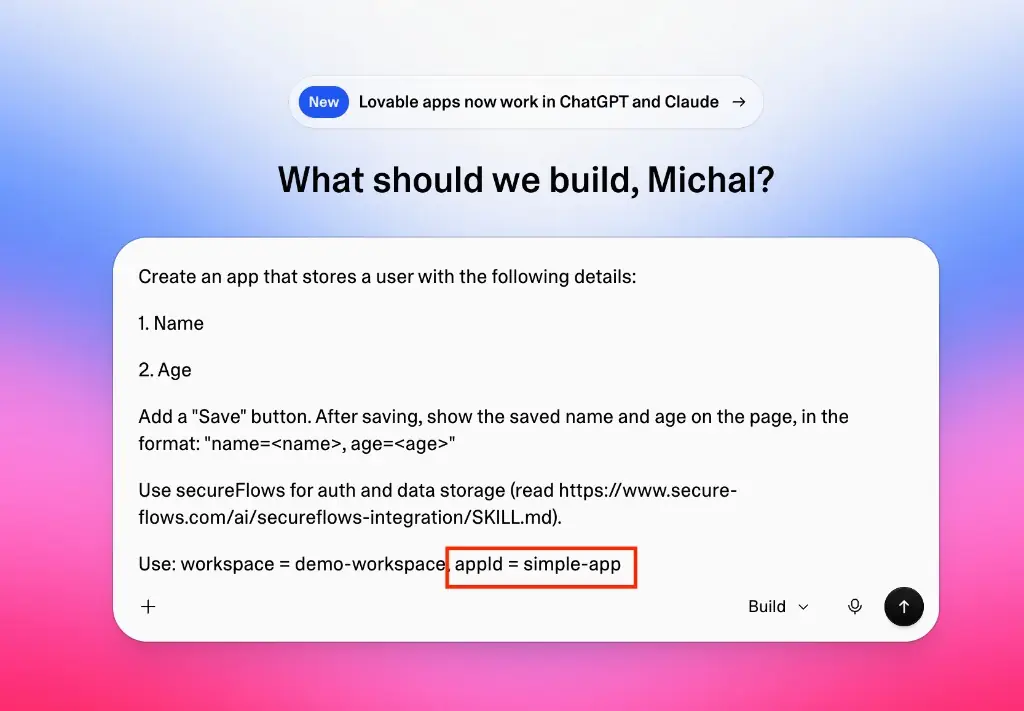
2. Build the app in Lovable using that application ID
In Lovable (or Base44), describe your app and tell the AI to integrate secureFlows. Pass the same
workspace and appId you just created.
3. Try signing in — copy the URL from the error
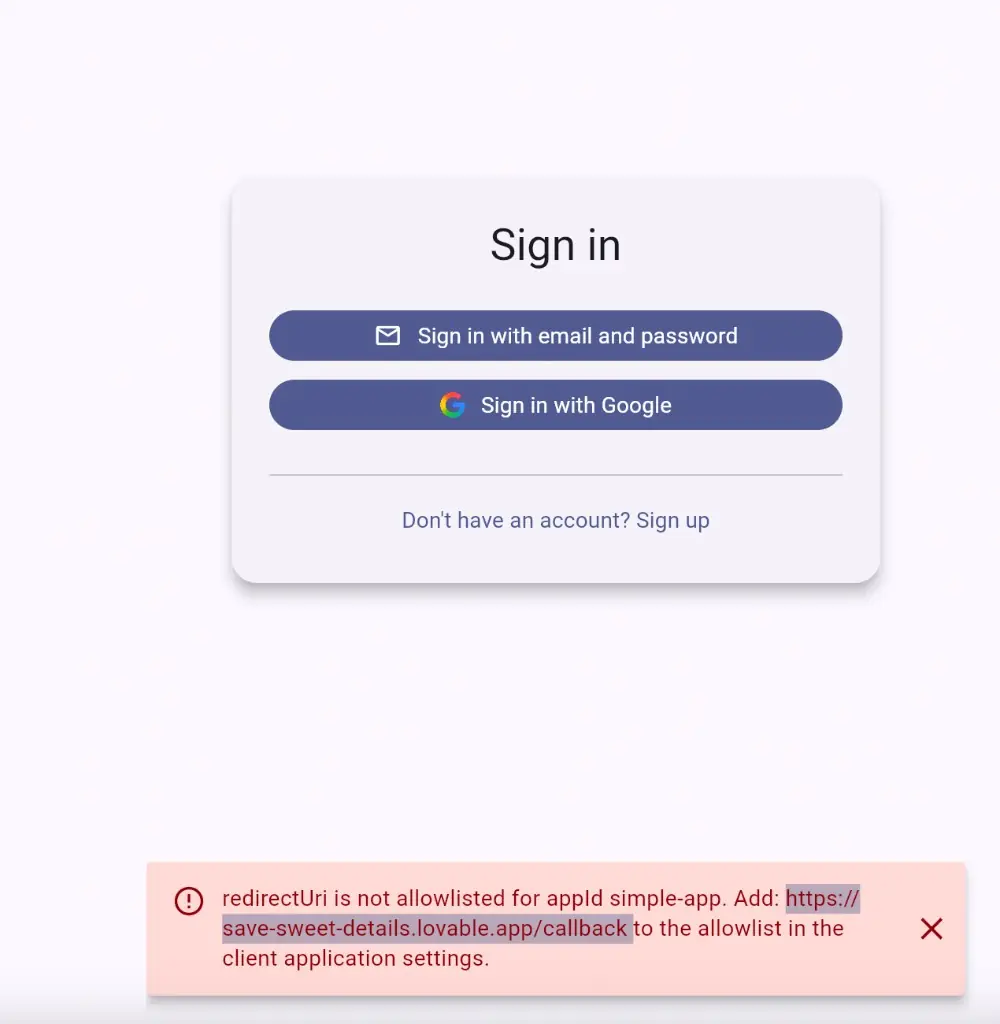
Open the preview app and create or sign in as a user. Because the placeholder isn’t the real callback host, secureFlows rejects the redirect and shows an error that includes the exact URL to allowlist. Copy that URL from the message.
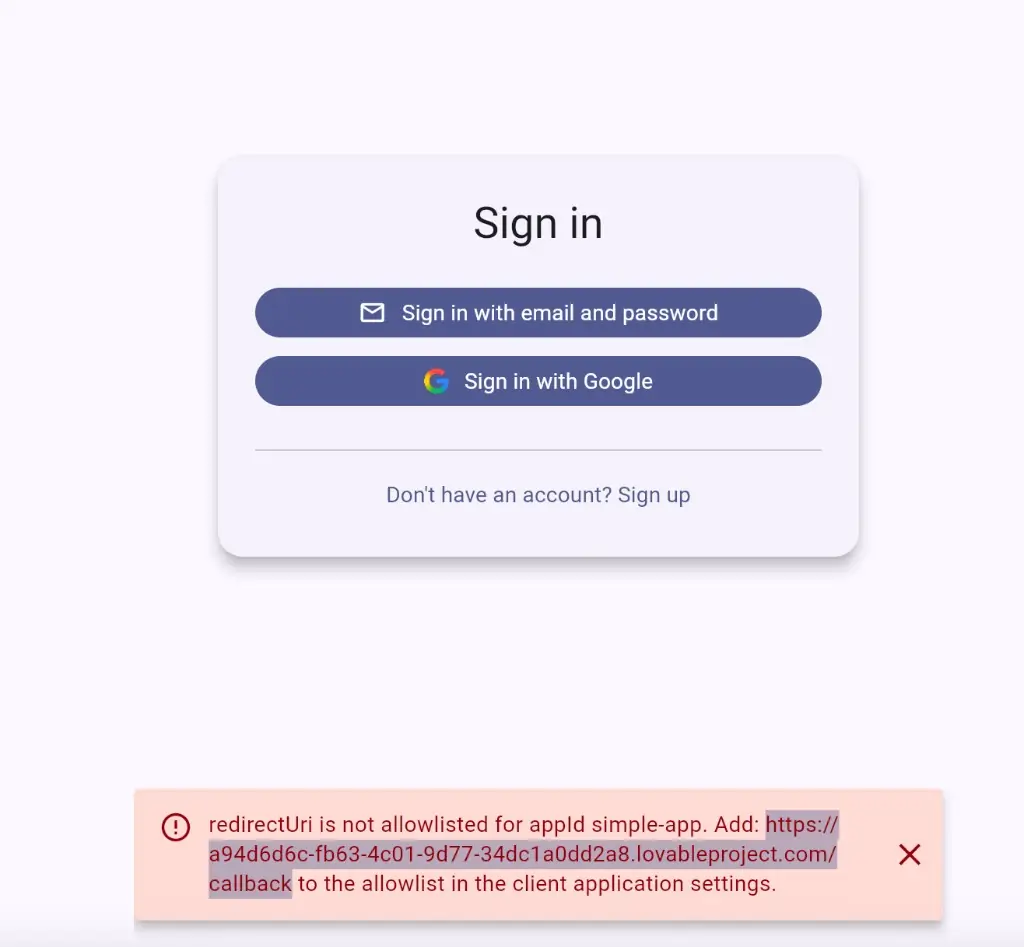
*.lovableproject.com/callback host).
4. Edit the application in Workspace Management
Go back to the Applications list, find your app, and open Edit.
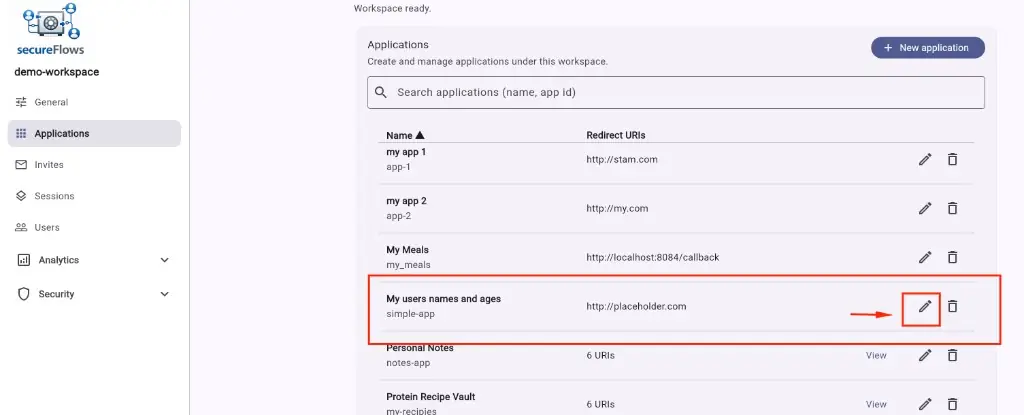
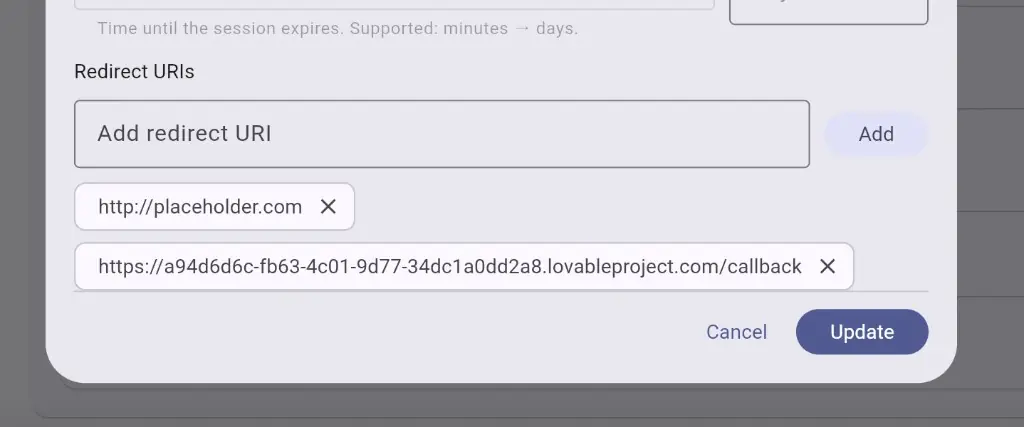
5. Add the preview redirect URI
Paste the URL you copied into Redirect URIs, click Add, then Update. Keep the placeholder for now if you like — you can remove it later.
6. Sign in again — the preview app should work
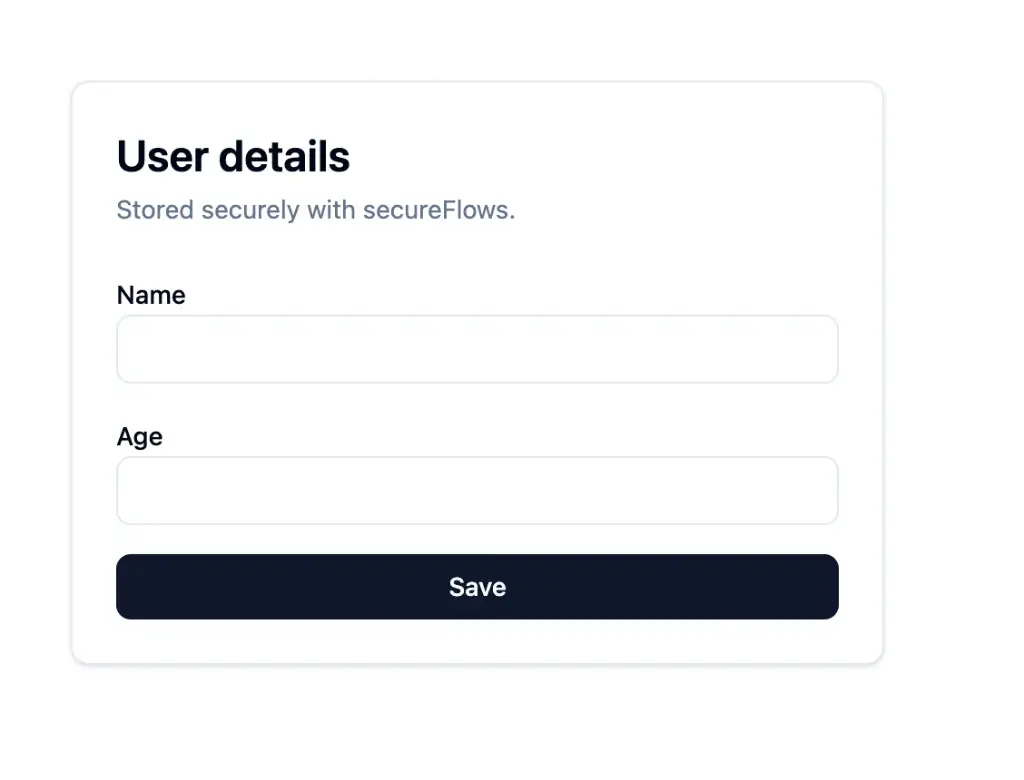
Return to the Lovable preview and sign in. Hosted login should complete, and your app can store and show user data through secureFlows.
7. Publish the app, then repeat for the final URL
When you publish, the platform usually assigns a new stable host (for example
*.lovable.app). The preview callback no longer matches — try signing in once more and copy the
new URL from the allowlist error, just as in step 3.
8. Add the published URL and clean up
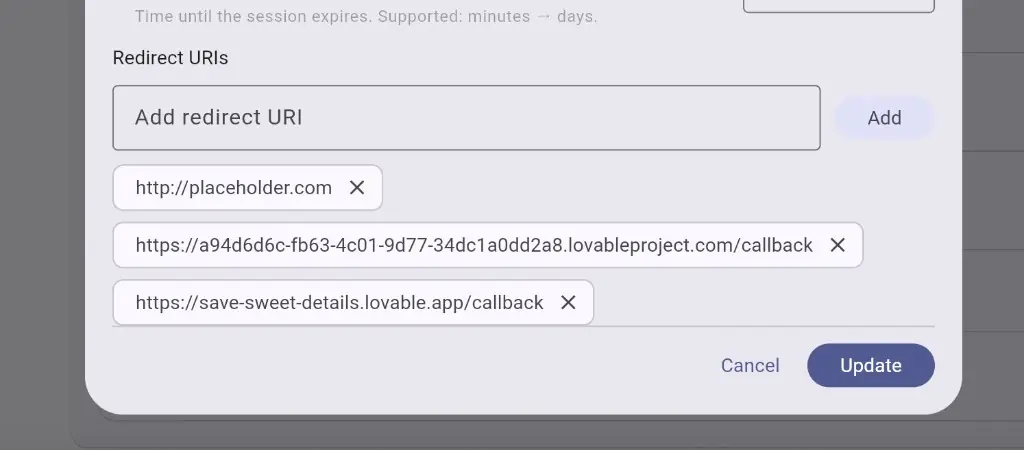
Edit the application again and add the published callback URI. Keep the preview URI for future debugging.
You can remove http://placeholder.com once both real URLs are on the list.
Next: Build your First Application · Applications · Platform-hosted apps